AI photo editor
Edit any photo with AI
If you can imagine it, you can edit it in Runway. Swap a backdrop, change the style, remove an object or reshoot a product, all on real photos, not just AI generations.
How to use AI photo editing with Runway
Three steps from upload to shippable image.
01. Upload your photo
Drop in a real photo, a product shot or an existing brand visual. Runway works on what you already have, not just AI-generated images.
02. Describe the change you want
Use the AI image editing tool to make any change. Or try one of our pre-built Runway Apps, like Change Image Style or Change Backdrop, for one-click AI image editing.
03. Export your edited photo
Just like that, you have production-ready stills you can drop straight into a campaign, a feed or a deck.
An App for every type of edit
Get started with purpose-built tools that wrap one edit in a single-step UI. Explore the Runway App library or chain Apps together in Workflows for repeatable processes.
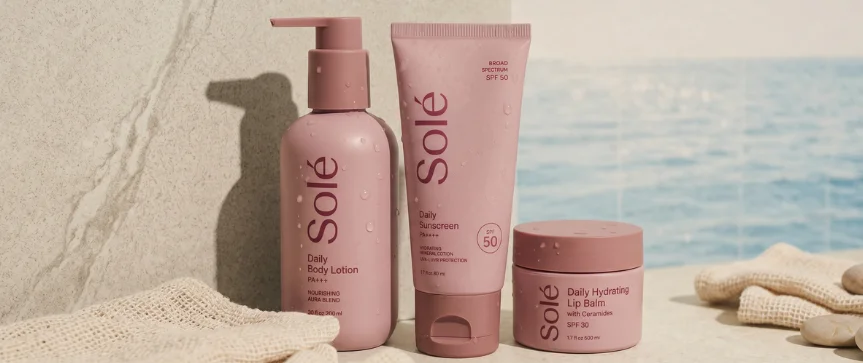
Product Reshoot
New pack shots from a single product image. No studio required.
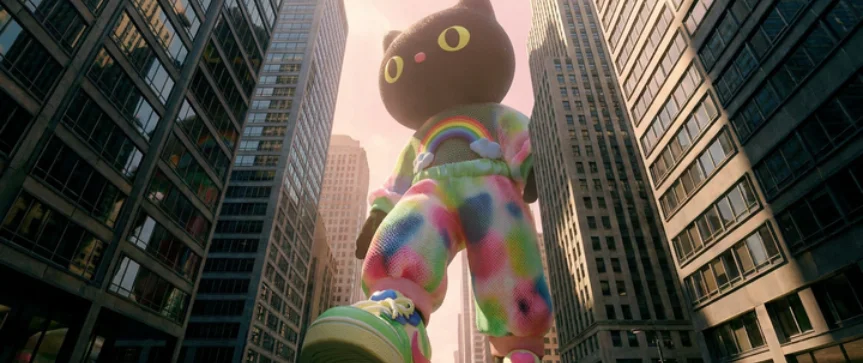
Change Backdrop
Swap any background for a new location, setting or color.

Relight Scene
Change the lighting direction, warmth or mood of any photo.
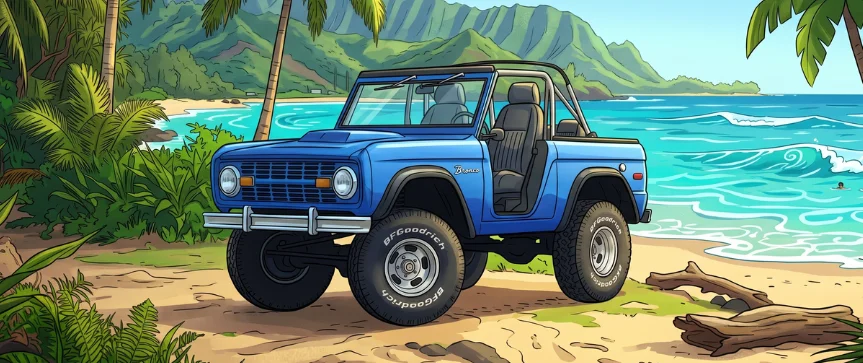
Change Image Style
Restyle the whole image to a new aesthetic while holding the subject.
Edit any photo with AI
What can an AI photo editor actually do?
An AI photo editor lets you change a photo by describing what you want, instead of masking and adjusting by hand. Swap a background, relight a scene, remove an object or restyle the whole image, all from a prompt. Only what you describe changes, and everything else stays put. You can do it on real photos as well as AI-generated ones.
See all editing Apps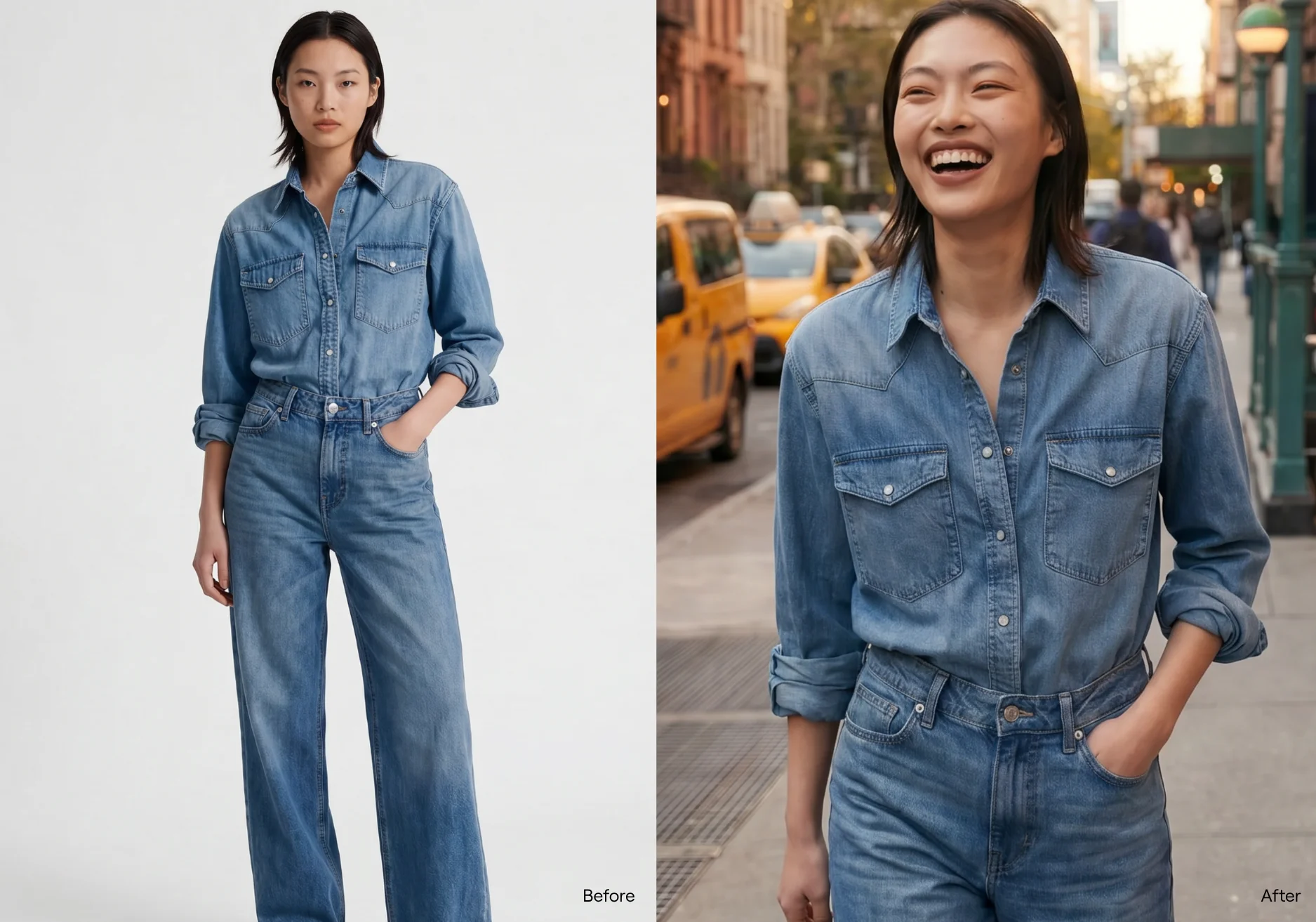
Example AI photo editing outputs
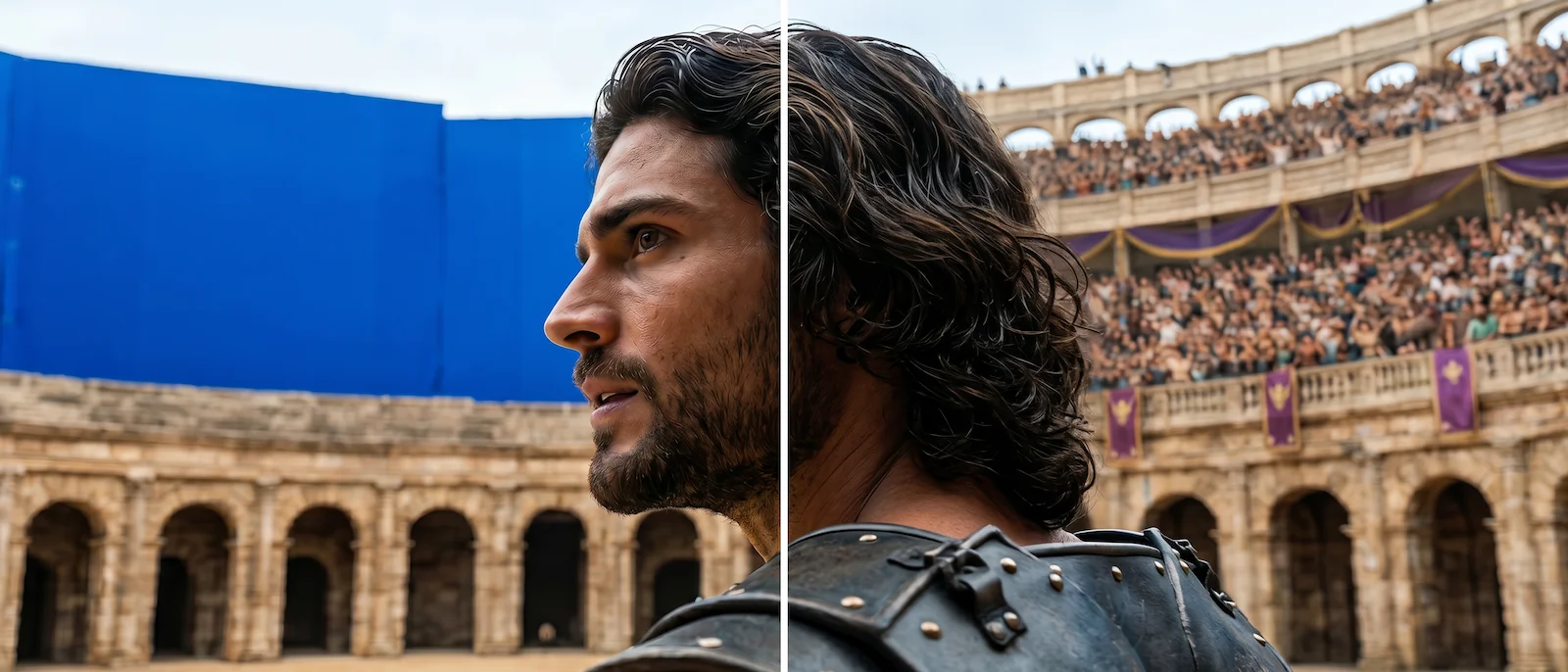
Backdrop & environments
Swap a location, add a setting or change the time of day. Works on real photos and AI-generated images.
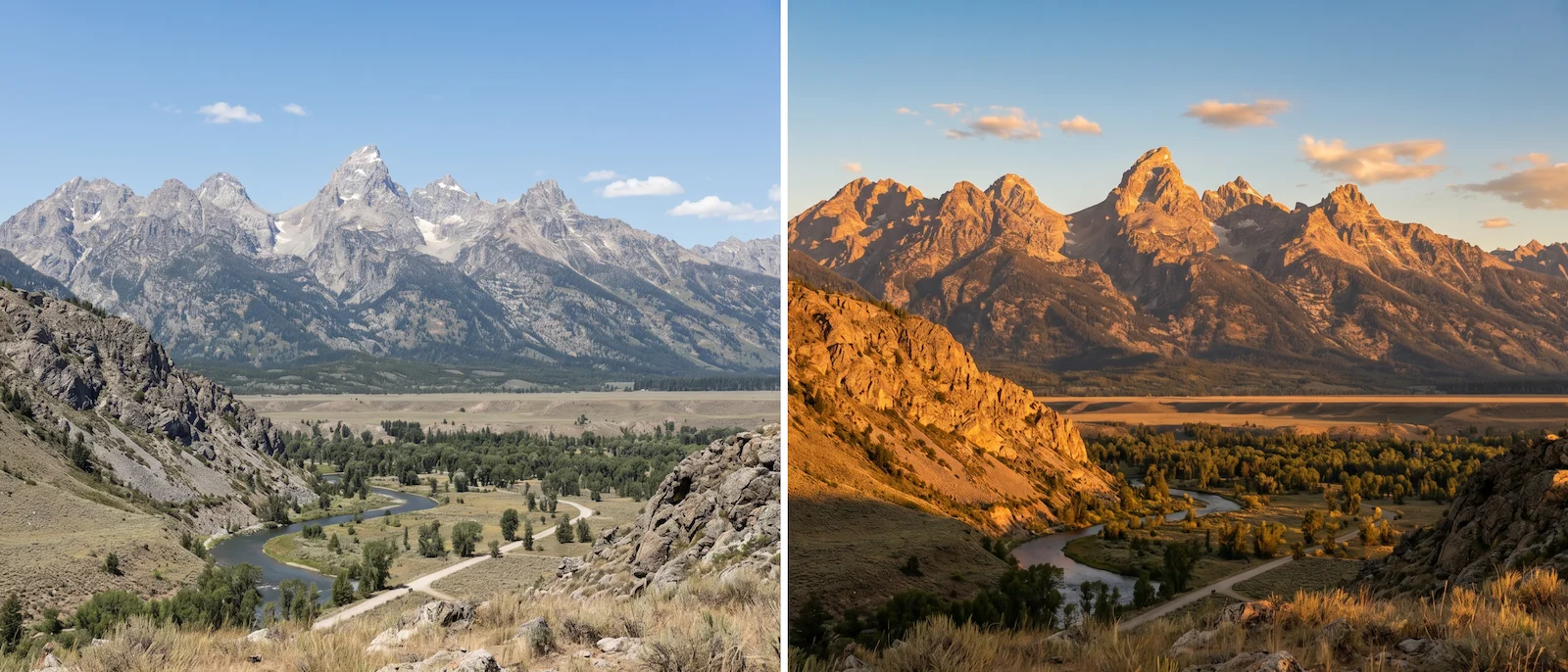
Lighting & retouch
Relight a portrait, correct an exposure or restyle the mood. Object-level control – everything else stays put.
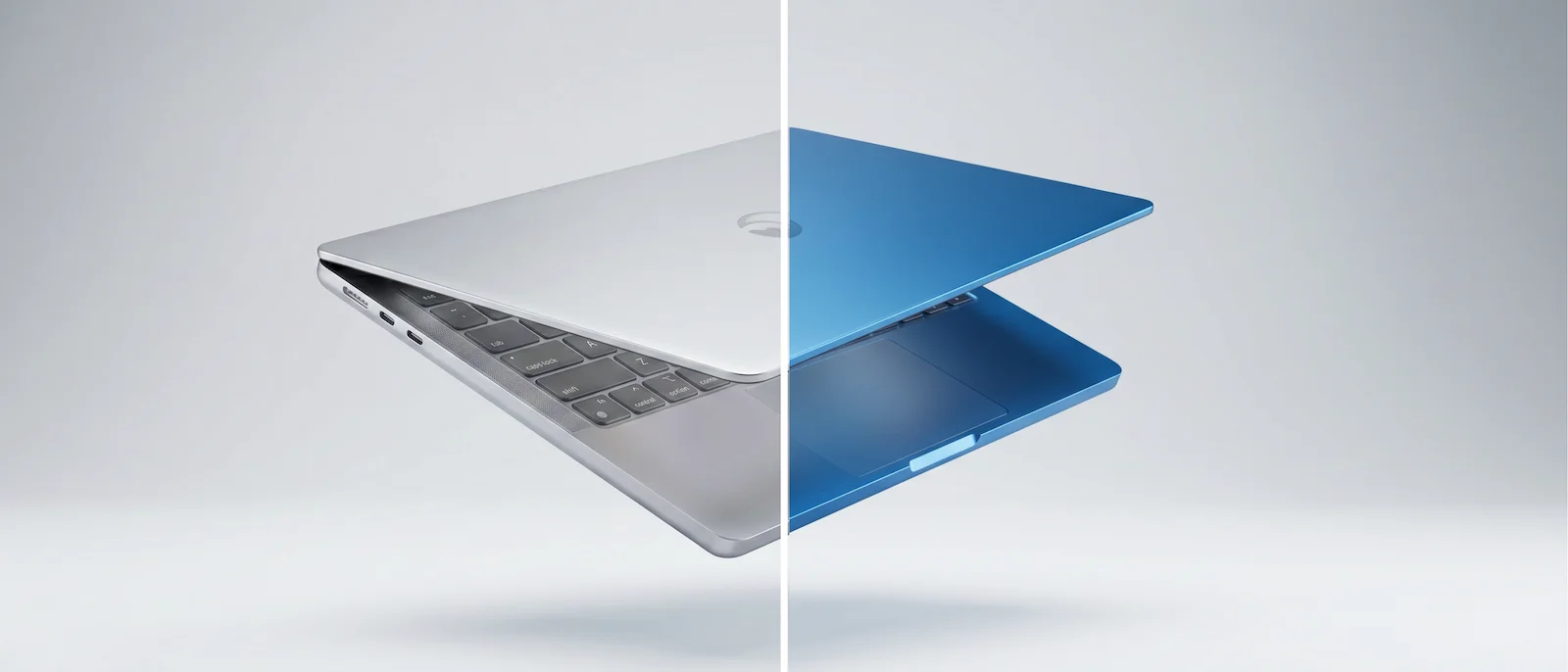
Objects & product details
Remove a stray prop, mark a logo for deletion or update a product to a new colorway. Runway fills the gap in-context.
Edit on what you shot. Not just on what you generate.
Start editing for freeReal campaigns, edited in Runway
Professional teams use Runway to edit product shots and campaign images.
Obsidian
See how Obsidian uses Runway to create campaigns for brands like Nike, Disney and Louis Vuitton.
Read the story
Fred & Farid
Learn why Fred & Farid chose Runway to create campaigns for brands like L'Oréal and The North Face.
Read the story
Havas Group
Explore how Havas Group uses Runway to create campaigns for brands like Michelin and Woolite.
Read the story
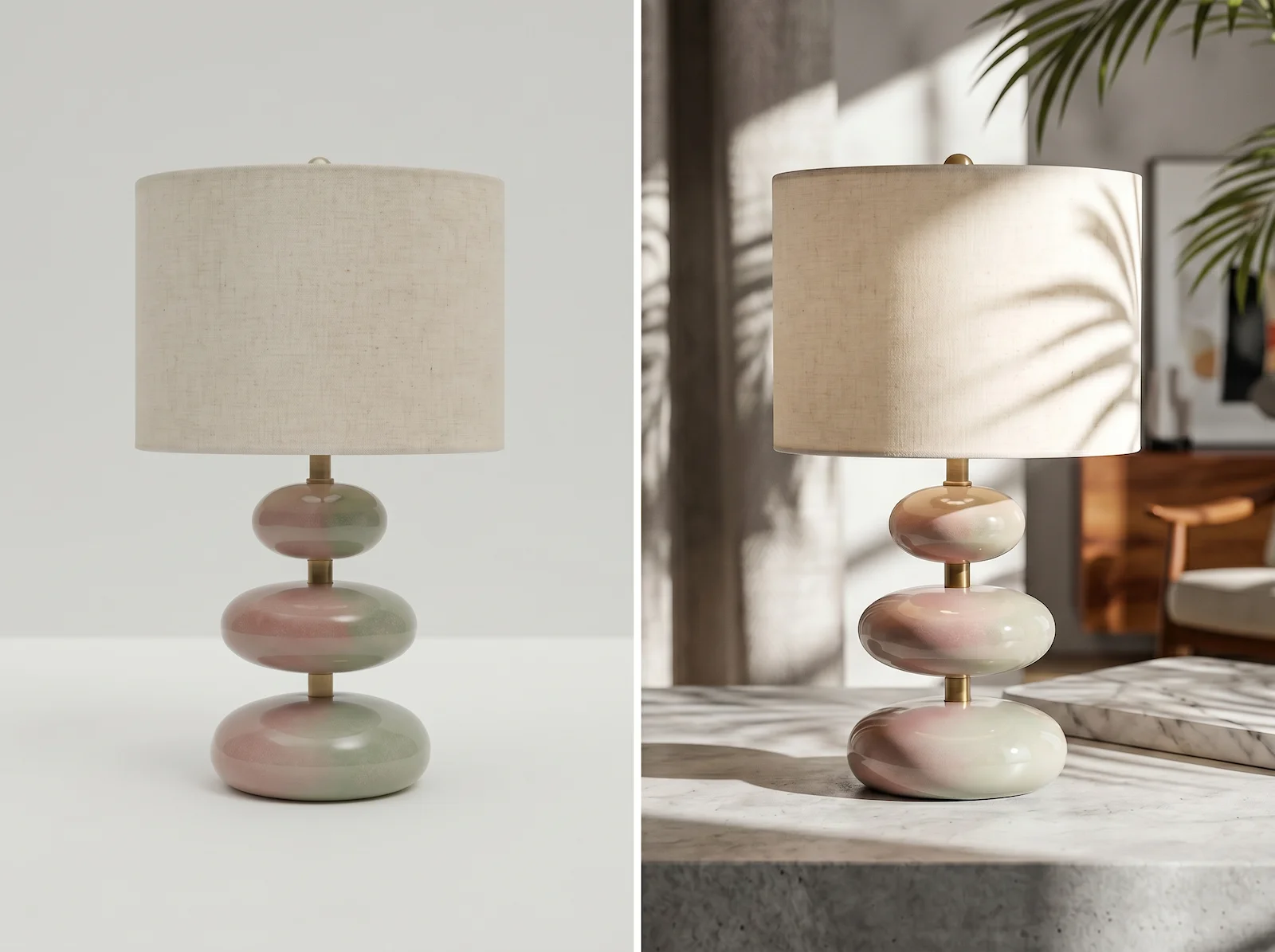
Portraits and product shots
Retouch portraits. Reshoot products. No new shoot.
AI image editing can be particularly useful for reshooting existing product shots. With the Runway Product Reshoot App, you can quickly create on-brand pack shots without returning to set.
Try the Product Reshoot AppFAQ
- What is an AI photo editor?
- An AI photo editor uses generative AI models to edit existing images. Backdrop swaps, relights, retouches, object removal and product reshoots all live in the same workspace. Runway's photo editor works on real photos and AI-generated images alike.
- Can I change the background of a photo with AI?
- Yes. Change Backdrop swaps any background for a new location, setting or solid color. Upload your photo, describe the backdrop you want, and Runway fills it in-context — matching the lighting and edges of the subject. Works on real photos and AI-generated images.
- Is the AI photo editor free?
- Runway has a free plan. Create a free account and start editing, no credit card required. Paid plans add more credits, more model access and Unlimited generations on higher tiers.
- Can I edit my own photos, not just AI images?
- Yes. The photo editor is built for in-context edits on real images. Drop in a phone photo, a studio shot or an existing brand asset and start editing. The same control surface works on AI-generated images too.
- How do I remove an object from an image?
- Mark the part of the image you want gone. Runway fills the area in-context, matching surrounding light, color and texture. Use it for stray bystanders, brand marks, wires, signs or anything that doesn't belong in the final frame.
- Does it replace Photoshop?
- No. Runway sits alongside or upstream of Photoshop and similar tools. Use it for the edits AI is best at, then send the file to your usual finishing pipeline.
- Can I keep my brand look consistent across edits?
- Yes. Use Change Image Style to apply a consistent aesthetic across a set. Use Reshoot Product to hold product look at scale. Use Characters to lock specific people across visuals. Chain them in a Workflow for repeatable passes.
Try Runway for AI image editing
Real photos. Precise edits. Every version your campaign requires.
Start for free

